
Syntax and Style Guide
This site uses a slightly different version of Markdown than Obsidian, and there are some key differences in how files are formatted
Table of Contents
- Editing in Obsidian
- Frontmatter
- Folders, File names, Titles, and Headers
- Images
- Callouts
- Footnotes
- Codeblocks
Editing in Obsidian
To edit the files in this repository in Obsidian, clone the repo to your computer1 then open the folder as a vault in Obsidian.
The settings in Obsidian are not synchronized with GitHub, so it’s important to ensure the following is enabled:
Once the vault is open, I recommend the following changes:
- Files and Links
- Automatically update internal links: Toggled on
- Default location for new notes: Same folder as current file
- New link format: Relative path to file
- Use
[[Wikilinks]]: Toggled off - Default location for new attachments: In the folder specified below
- Attachment folder path: assets/images
- Community plugins
- Auto Link Title by Matt Furden
- Paste image rename by Reorx
- Dataview by blacksmithgu
- This is specifically for the “Malformed Pages” table which looks for pages with formatting problems.
- Dataview is not supported by Jekyll
Once you have finished adding or updating your documents, you can push the changes back up into GitHub for review and publication. As a reminder, your Obsidian Vault settings will not synchronize.
Frontmatter
The following frontmatter should be included in all documents:
title:            # The readable title of the document
layout: default   # Leave as default
parent:           # The title of the parent document, used in ToC's
nav_order:        # The position this document should appear in lists
nav_order prioritizes lower numbers to be higher in the list. If the nav_order matches, then it should sort alphabetically, but order may change for unknown reasons.
By default for most posts, nav_order should be set to 50 to ensure adequate space for prioritization and growth.
nav_order for index.md pages allow you to set the order for folders; the actual homepage should always be 0, and other folders should be separated by increments of 10.
Other relevant frontmatter properties are listed below:
nav_exclude- Boolean property
- This does not say whether the page is published, just if it’s listed on the site
- Designates whether it’s listed on the site (
false) or not (true)
Folders, File names, Titles, and Headers
Links
Links to other internal resources follow the same pattern as links to external resources; [displayed text](relative file path or url).
Internal links must use a relative path to the file. For example, if you have to travel up several folders to reach the file, they must be marked with .. (see screenshot). Obsidian will automatically update links if you use it as your editor.
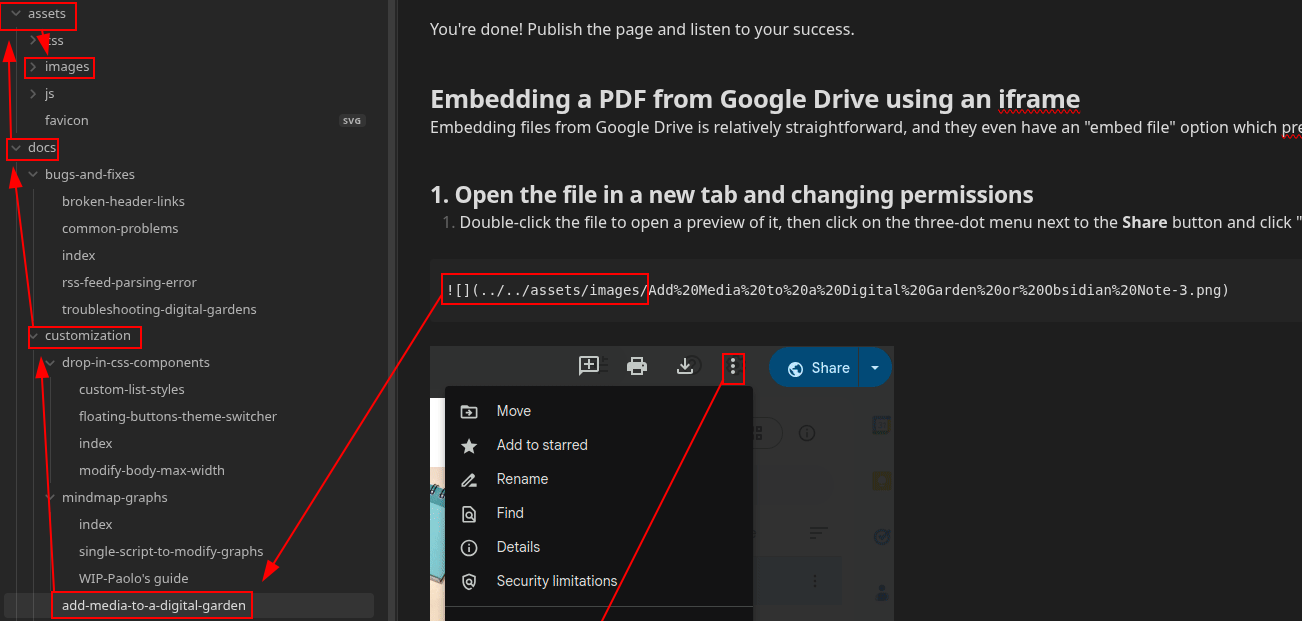
Warning - Internal Links in Footnotes
While in-body internal links get updated from
.mdto.html, internal links in footnotes do not get updated. For the time being, it is best to either avoid links in footnotes or manually correct them to end in.htmlFor example, here are two2 footnotes,3 where one has been manually updated to end with
.html

Folders and index.md
Each folder should have a short summary document named “index.md” that describes the folder contents. All other notes in the folder should list that file’s title as the parent so that they appear in the Table of Contents automatically generated at the bottom of the file.
Naming conventions
File names should be all lower-case with hyphens between words. Use the title property in the frontmatter and a Header 1 in the first line of the document to set the readable title of the document.
The name of the index.md file in a folder should match the readable folder name.
Titles for Works in Progress
Files that are works in progress (and are not intended to be published yet) should begin with “WIP” in the file name, should not have the
titleproperty set, and should havenav_excludeset to true.Remember, however, that these documents will be public, just more difficult to find; never commit/push information not intended for public availability.
Headers
The page title should be “Header 1” and the first line of a document after the frontmatter. Other headers can be
# Header 1
Some text
## Header 2
Some text
### Header 3
Some text
#### Header 4
Some text
##### Header 5
Some text
###### Header 6
Some text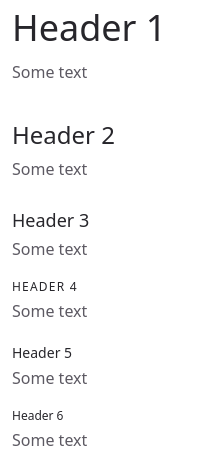
Headers can also be linked to using the traditional bracket/parenthesis links. If using Obsidian with the settings described earlier, entering double-bracket/hashtag and selecting the header from the dropdown will format the link, but you will need to set the header as lower-case and sluggified (hyphens for spaces).
[Headers](#headers)

[Table of Contents](#table-of-contents)Table of Contents
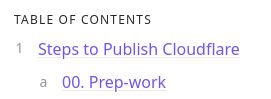
Creating a Table of Contents is pretty simple, and is described Just the Docs - In-Page Navigation. Basically, there are a few tags to be aware of.
{: .no_toc}- Placed after a header to exclude it from the table of contents
{:toc}- Immediately follows the first line of an ordered or unordered list to generate a ToC
- The first line of that list must also have “TOC” as the only text
- There can only be one
{:toc}tag per document
# In-Page Navigation
{: .no_toc }

## Table of Contents
{: .no_toc .text-delta }

1. TOC
{:toc}
Make sure that you use
{:toc}and not{: .toc}, or it won’t work.
{: .text-delta} is a CSS type scale that matches an H4 header, as described in Just the Docs - Typography. In the example above, it converts the H2 header of “Table of Contents” to look like an H4 header.
Images
Images should be stored in assets/images for easier management.
Embedded images must linked to the exact folder from the current location; for example, linking to a file in /assets/images from /Folder1 would require the path ../assets/images/picture.jpg
Below is not a great example because the syntax guide as at the root of the repo, but here’s what it looks like:

Callouts
Callouts are written following the Just the Docs - Callouts documentation. Use braces to indicate what kind of callout you’re using, and then greater-than symbols for text.
Always make sure there is one empty line between the callout and the next piece of text; failure to do so will include the subsequent line in the callout.
{: .attention}
> My text.
My text.
This site has the following defined callouts:
Warning example
Hint example
Important example
Note example
Tip example
Caution example
Error example
Attention example
Append the callout type with “-title” to convert the first line into the title for the callout.
{: .warning-title}
> This is the title
>
> This is the text
This is the title
This is the text.
Paragraphs must be separated with a full line break.
{: .tip-title}
> This is the title
>
> This is the first paragraph
>
> This is the second paragraph
This is the title
This is the first paragraph
This is the second paragraph
Footnotes
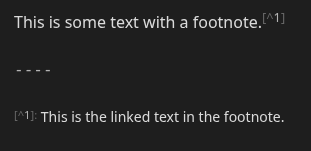
Footnotes should use the following formatting as the link, and then as the linked text Link: [^(1, 2, 3, etc.)] Linked text: [^(1, 2, 3, etc.)]: Linked text
The order of footnotes does not matter; upon rendering the site, Jekyll/JTD will add the footnotes in order of appearance in the document. For example, if you add a bunch of footnotes through the document, but then later add footnote 9 at the very top, 9 will be come 1 on the website, 1 will become 2, etc.
Before the linked text in the foot notes, include a line break with --- or ----.
This is some text with a foot note. 4
Codeblocks
Codeblocks with syntax highlighting must be wrapped using either Jekyll’s highlight syntax5 or HTML, as demonstrated and discussed in the JTD official docs.
If you use Obsidian as your editor, there is a codeblock template for you in the templates folder, and it includes the raw/endraw described below.
Jekyll
Jekyll’s syntax highlighting is the least-janky way to highlight code. Jekyll supports a wide-range of languages for syntax-highlighting, described here and elsewhere: Supported syntax highlighting in Jekyll - Fabrizio Musacchio6
Unfortunately, it does not support Nunjucks, though there may be a workaround we can implement in the future.7
Examples:
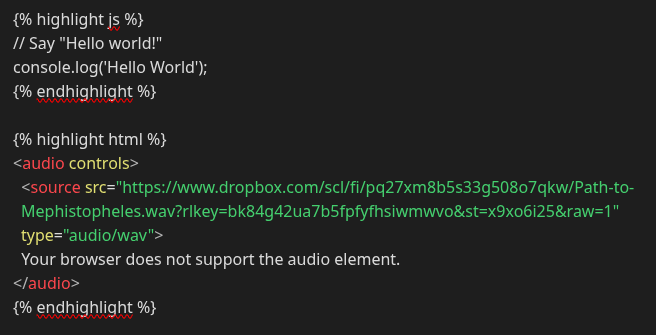
// Say "Hello world!"
console.log('Hello World');
<audio controls>
<source src="https://www.dropbox.com/scl/fi/pq27xm8b5s33g508o7qkw/Path-to-Mephistopheles.wav?rlkey=bk84g42ua7b5fpfyfhsiwmwvo&st=x9xo6i25&raw=1" type="audio/wav">
Your browser does not support the audio element.
</audio>Nunjucks
If your codeblock has nunjucks tags (the percentiles and squiggly-brackets), you must use the “raw” tags so that it is not rendered by Jekyll.
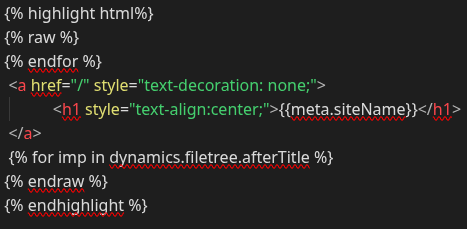
{% endfor %}
 <a href="/" style="text-decoration: none;">
	   <h1 style="text-align:center;">{{meta.siteName}}</h1>
 </a>
 {% for imp in dynamics.filetree.afterTitle %}
Codeblock formatting you probably shouldn’t use
Wrapping backticks
You can also wrap normal codeblocks using the Jekyll highlight tag; you just need to identify the language as “markdown” in the tag.

```js
// Say "Hello world!"
console.log('Hello World');
```
This should probably be avoided so that when people copy/paste the contents of the codeblock, they aren’t copying the markdown codeblock syntax.
HTML tags
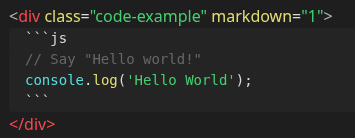
<div> codeblocks are generally less optimal, but are included here for completeness. The first line should read <div class="code-example" markdown="1">, and the last line closes the tag with </div>
For example, this formatted code:
Looks like this:
// Say "Hello world!"
console.log('Hello World');
HTML tags should be avoided because they add unnecessary whitespace around the codeblock.
-
Using GitHub Desktop or Git. ↩
-
This is the linked text in the footnote. ↩
-
List of supported languages and lexers · rouge-ruby/rouge Wiki · GitHub ↩
-
Nunjucks / *.njk syntax highlighting · helix-editor/helix · Discussion #5740 · GitHub ↩